
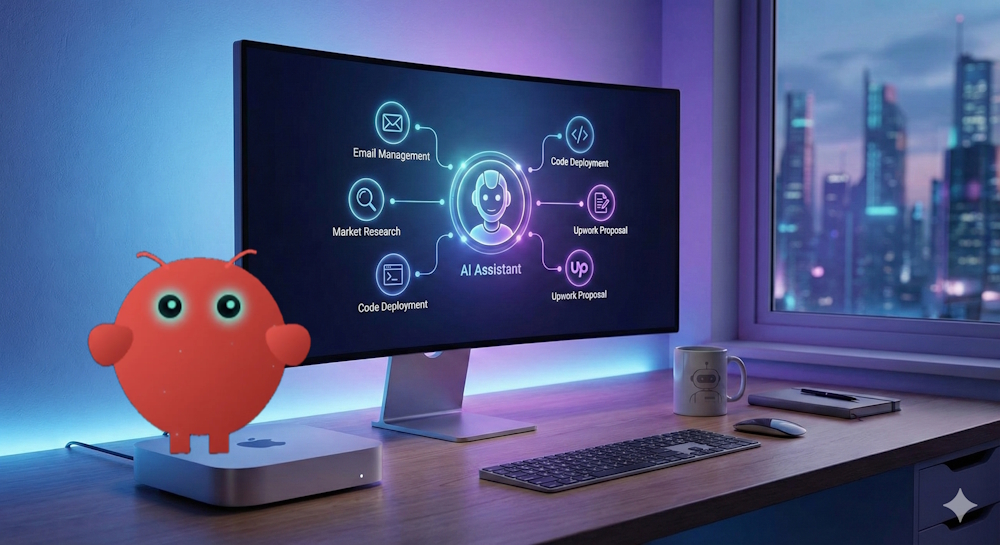
If you are reading this, chances are you have heard about OpenClaw. Maybe someone on Twitter mentioned it. Maybe you saw Alex Finn’s videos. Maybe a colleague casually dropped “my AI employee handles that for me now” and you realized you need to catch up. Fast.
I have been running OpenClaw on a Mac Mini for weeks now. My AI employee, Govind, handles everything from email management to market research to code deployment to Upwork proposal drafting. He runs 24/7. He does not take breaks. He does not call in sick. He remembers everything I tell him and gets better every single day.
This is not a quick start tutorial. This is the comprehensive, bookmark-worthy, come-back-to-it-every-week guide that covers everything. From choosing the right hardware to advanced multi-agent workflows to the troubleshooting lessons I learned the hard way when my AI employee went into a coma. Twice.
Whether you are a complete beginner or you already have OpenClaw running and want to take it to the next level, this guide has something for you.
Let us get into it.
Why Mac Mini? The Case for Local Over VPS
Before we talk about how to set up OpenClaw, we need to address the elephant in the room. Every other creator and AI influencer is telling you to put OpenClaw on a VPS (Virtual Private Server). Some are even selling $5,000 setup packages.
Let me be blunt. Do not do that.
Here is why local beats VPS every single time:
Security is the biggest reason. When OpenClaw runs on your local Mac Mini, your data never leaves your machine. Your conversations, your memory files, your API keys, your browser sessions, everything stays on hardware you physically control. On a VPS, you are trusting a data center somewhere with admin-level access to your entire digital life. One misconfigured port, one forgotten SSH key, and someone has access to everything your AI employee can do.
Mac Mini is secure by default. FileVault encryption, the Secure Enclave chip, macOS firewall, Gatekeeper. Apple has spent decades building security into their hardware and software. You get all of that out of the box for $599. Try replicating that level of hardware security on a $20/month VPS.
Performance is better than you think. The M4 chip in the base Mac Mini handles cloud API workloads effortlessly. The unified memory architecture means CPU and GPU share the same high-speed memory pool. No bottlenecks. No data shuttling between system RAM and discrete VRAM. For an always-on AI agent making API calls, 16GB is more than enough.
Power consumption is negligible. The M4 idles at 3 to 4 watts. That is roughly the same as leaving a nightlight on. Running it 24/7 for an entire year costs less than $15 in electricity. Compare that to a GPU-equipped desktop or even a basic VPS subscription.
iMessage integration is Mac-only. If you are in the Apple ecosystem and want your AI to send and receive iMessages, you need macOS. Period. There is no workaround on Linux or Windows.
The community has already decided. OpenClaw has over 165,000 GitHub stars. The Mac Mini is the de facto reference hardware. Setup guides, tutorials, community builds, troubleshooting forums are all built around Mac Mini deployments. You will find more help, faster, when you are running the same setup as everyone else.
Alex Finn said it best in his recent video: “If you run it on a VPS, you’re getting like 20% of the power.” He is not exaggerating.
Which Mac Mini Should You Buy?
Here is the honest breakdown:
Mac Mini M4 (16GB) at $599: This is the sweet spot for most people. If you are running OpenClaw with cloud providers like Anthropic Claude or OpenAI, 16GB is sufficient. Your AI employee is making API calls, not running models locally. Save your money here.
Mac Mini M4 Pro (24GB) at $1,399: Good if you want to experiment with small local models alongside cloud APIs. Think of it as future-proofing.
Mac Mini M4 Pro (48GB or 64GB): For running larger local models (32B+ parameters). The 64GB variant runs 32-billion-parameter models at 11 to 12 tokens per second. This is the endgame for people who want to cut the cloud API cord entirely.
My recommendation? Start with the base $599 Mac Mini. Use it. Learn it. Upgrade when you hit a specific workflow that demands more power. Do not spend $2,000 on hardware before you even know if you will use it.
Essential Accessories
Before you unbox the Mac Mini, grab these:
- HDMI Dummy Plug ($8 to $12): This is critical. It tricks macOS into thinking a monitor is connected. Without it, your Mac Mini might have display issues when running headless (without a monitor). Buy one. You will thank me later.
- Ethernet cable or USB-C hub with Ethernet: WiFi works, but Ethernet is more reliable for a 24/7 always-on device. You want zero dropped connections at 3 AM when your AI is in the middle of a research task.
- Keyboard with Touch ID (for initial setup): Makes authentication much faster during the setup process.
- External SSD (optional): Samsung T7 Shield for storing large model files or isolating your OpenClaw workspace from your main drive.
Step-by-Step Installation: From Unboxing to First Message
Phase 1: Prepare Your Mac Mini
-
Fresh Start
If the Mac Mini is brand new, skip this. If you are repurposing one, go to System Settings, then General, then Transfer or Reset, then Erase All Content and Settings. Start clean.
-
macOS Setup Assistant
Walk through the initial setup:
- Connect to WiFi (or Ethernet, preferably)
- Create an Apple ID (use a dedicated email, not your personal one)
- Create a local administrator account
- Enable FileVault disk encryption when prompted. This is non-negotiable for security.
- Decline everything non-essential: Location Services, Siri, Apple Intelligence, analytics sharing, Screen Time. This machine has one job. The less background noise, the better.
-
System Updates
Open System Settings, go to General, then Software Update. Install everything. Restart.
-
Power and Sleep Settings
Go to System Settings, then Energy:
- Enable “Prevent automatic sleeping when the display is off”
- Enable “Wake for network access”
- Enable “Start up automatically after a power failure”
Then install Amphetamine from the Mac App Store. Configure it to launch at login and keep the Mac awake indefinitely. Between Energy settings and Amphetamine, your Mac Mini will stay awake through anything short of a power outage. And the auto-restart setting handles power outages.
Phase 2: Install the Prerequisites
Open Terminal (Applications, then Utilities, then Terminal) and run these commands one by one:
Install Xcode Command Line Tools:
xcode-select –install
Click Install on the dialog. Wait for it to finish.
Install Homebrew:
/bin/bash -c “$(curl -fsSL https://raw.githubusercontent.com/Homebrew/install/HEAD/install.sh)”
After installation, add Homebrew to your PATH:
echo ‘eval “$(/opt/homebrew/bin/brew shellenv)”‘ >> ~/.zprofile
eval “$(/opt/homebrew/bin/brew shellenv)”
Verify: brew –version
Install Node.js 22+:
brew install node@22
If it installs as keg-only (you will see a message):
echo ‘export PATH=”/opt/homebrew/opt/node@22/bin:$PATH”‘ >> ~/.zshrc
source ~/.zshrc
Verify: node –version (should show v22.x.x or higher)
Install pnpm (recommended for skills):
npm install -g pnpm
Phase 3: Install OpenClaw
This is the part where most people overcomplicate things. Watch this.
curl -fsSL https://openclaw.ai/install.sh | bash
That is it. One command. The installer detects your operating system, verifies prerequisites, and installs the OpenClaw CLI.
Verify: openclaw –version
Phase 4: Run the Onboarding Wizard
openclaw onboard –install-daemon
The –install-daemon flag is critical. It sets up a launchd service so OpenClaw starts automatically on boot and runs 24/7.
The wizard walks you through:
- Local vs Remote gateway: Choose Local.
- AI provider: Enter your Anthropic API key. Opus 4.6 is the recommended brain. It is the smartest, most personable, warmest model available. Yes, it costs more. It is worth it.
- Messaging channels: Configure Telegram (paste your bot token from BotFather) and/or Discord.
- Pairing defaults: Sets up secure DM handling. Leave this as is.
- Skills setup: Say Yes. Select pnpm as your node manager.
- Hooks: Enable all three (boot hook, command logger, session memory). Session memory is the most important one. It saves conversation context before the context window fills up.
- Gateway token: Generated automatically. Save this somewhere.
Common gotchas during onboarding:
- If the model selection fails silently (you get “no output” responses), you picked the wrong model string. Use anthropic/claude-opus-4-6.
- Telegram allowlist by username sometimes fails. Use your numeric Telegram user ID instead. Get it by messaging @userinfobot on Telegram.
- If you get rate limit errors (HTTP 429), wait 60 seconds and try again. Normal for lower API tiers.
- If openclaw says “command not found” after install, run source ~/.zshrc or open a new terminal window.
Phase 5: Configure Web Search
Your AI employee needs to search the web. Set this up:
openclaw configure –section web
Choose Local gateway. Enable web_search (Brave Search) and enter your Brave API key. Also enable web_fetch for reading articles and web pages directly.
Brave gives you 2,000 free searches per month. For most people, that is plenty to start.
Phase 6: Verify Everything Works
openclaw gateway status
openclaw status
openclaw health
openclaw security audit –deep
If health shows “no auth configured,” go back and set your API key.
Phase 7: Access the Dashboard
Do not just type http://127.0.0.1:18789 in your browser. You will get a “gateway token missing” error.
Instead:
openclaw dashboard
This opens a tokenized URL with your gateway token included. Bookmark it.
Phase 8: Connect Telegram and Send Your First Message
Send /start to your bot on Telegram. You will get a pairing code. Approve it:
openclaw pairing list telegram
openclaw pairing approve telegram <code>
Now message your bot anything. “Hello, what can you do?” If it responds, congratulations. You have a 24/7 AI employee.
The First Things to Do After Setup
1. Brain Dump Everything About Yourself
This is the single most important thing you will do with OpenClaw. Think of it as onboarding a new employee on their first day.
Open your Telegram chat with your OpenClaw bot and brain dump:
- Your background (who you are, what you do, your experience)
- Your personal preferences (how you like to work, communication style, what tools you use)
- Your goals and ambitions (what you are trying to achieve this year, your income targets, your projects)
- Your schedule and routines
- Your family situation (so it can be context-aware about your time)
Everything you share gets saved to memory and included in every future conversation. The more you share, the smarter and more personalized your AI employee becomes.
2. Set Up a Personalized Morning Brief
Tell your OpenClaw:
“Please schedule a morning brief for me every day at 7 AM. Send it to my Telegram. Include: (1) today’s weather in [your city], (2) top AI news stories, (3) my upcoming calendar events, (4) any tasks you can complete for me today that bring me closer to my goals.”
That last part is the magic. You are letting your AI think for itself about how to help you. This is what Alex Finn calls “reverse prompting” and it is the most powerful technique in AI.
3. Set Up Telegram Topics (Game Changer)
A single chat thread with your bot becomes a mess fast. Research, code tasks, content ideas, random questions, all jumbled together.
Fix this with Telegram’s Topics feature:
- Create a private Telegram group
- Add your bot as a member and make it an administrator
- Enable Topics in group settings
- Create topics for different workstreams: #general, #research, #code, #content, #automations
Each topic gets its own conversation context. Your bot stays focused and does not burn tokens loading unrelated history. This is one of the highest-impact workflow improvements you can make, and it costs nothing.
Pro tip: Extend your session expiration to one year instead of the default daily reset. With topic channels keeping conversations scoped, daily resets are counterproductive.
The “Brains and Muscles” Strategy: Saving Money While Maximizing Power
Here is a concept that will save you serious money on API costs.
Your main AI model (Opus 4.6) is your brain. It is the orchestrator, the decision maker, the one you talk to. But you do not need the most expensive model for every task.
Set up cheaper muscles for specialized work:
- Coding: Use Codex CLI or Claude Code (spawns its own sessions, very efficient)
- Web research: Use Brave API or Gemini Flash models or Preplexity for web search
- Social: Grok API (for Twitter/X trends)
- Quick tasks: Use Haiku (dirt cheap, still capable) or cheaper Gemini models via Antigravity
- Heartbeats: Switch to Haiku with 1-hour intervals instead of Opus every 10 minutes
How to set up heartbeat cost savings (this alone saves you $50+ per month):
{
“agents”: {
“defaults”: {
“heartbeat”: {
“model”: “anthropic/claude-3-5-haiku-20241022”,
“every”: “1h”
}
}
}
}
Or just tell your OpenClaw: “Change your heartbeat to use Haiku and set the interval to 1 hour.”
Advanced Use Cases That Go Way Beyond Morning Briefs
Here is where things get exciting. These are real workflows that real people (including myself) are running right now.
1. Multi-Agent Upwork Pipeline
I built a system with 4 AI agents across 3 gateways that automatically finds freelance jobs on Upwork, evaluates them, and drafts proposals:
- UpworkHunter scans for new jobs matching my criteria
- UpworkSniper drafts customized proposals based on job descriptions
- Reviewer (running on Opus) does quality assurance before anything gets submitted
- The Watchdog to notify my chief-of-staff, Govind in case any of the agents run into any technical difficulties or fail to do their job.
They communicate through chain triggers. When Hunter finds a job, it automatically hands off to Sniper. When Sniper drafts a proposal, Reviewer checks it. And when Reviewer signs off, the Sniper picks up the approved proposal and submits it against the open job. All of this happens while I sleep.
2. Content Factory Pipeline
Set up Discord channels as a workflow pipeline:
- #alerts channel: Every 2 hours, your AI scans Twitter/X for trending topics in your niche
- #research channel: It takes those trends and does deep investigative research
- #scripts channel: It turns that research into blog post drafts or video scripts
- #thumbnails channel: It generates AI images for thumbnails
You wake up to a library of content ideas, fully researched, with drafts ready for your review.
3. Email Management and Inbox Zero
Your AI checks your inbox on a schedule, categorizes emails by urgency, drafts responses to routine messages, and flags anything that needs your personal attention. You go from 50 unread emails to “here are the 3 you actually need to read” in seconds.
4. Market Intelligence and Competitive Research
Schedule your AI to research competitors, scan industry trends, analyze pricing models, and deliver weekly intelligence reports. I had my AI discover that AI Agent Orchestration is a $75K to $200K service tier with zero competitors and a 6-month window. That one insight alone was worth months of API costs.
5. Autonomous Code Development
With Claude Code and Agent Teams (available in Opus 4.6), your AI can spawn multiple coding agents that work together. One handles frontend. One handles backend. One writes tests. They coordinate with each other and deliver working code.
I have had my AI vibe-code entire dashboards, build monitoring systems, and create custom tools for my workflow. All while I was doing other things.
6. Custom Mission Control Dashboard
Tell your OpenClaw: “I want you to set up a mission control using Next.js and host it locally.”
It will vibe-code a custom dashboard for you. Then you iteratively add tools: to-do lists, approval queues, sub-agent trackers, content calendars, KPI dashboards. Your AI builds the tools it needs to be more productive. That is not vibe coding. That is vibe orchestration.
I had my OpenClaw create a mission control dashboard for tracking each of my agents and actively monitor which agent processed which job and what did it do while it was in action. This is a beautiful thing to see happen automatically!
7. Smart Home Integration
Connect OpenClaw to Home Assistant or IFTTT. Control lights, thermostats, and smart devices through natural language in your Telegram chat. “Turn off the office lights” becomes a one-message command.
8. Receipt and Expense Tracking
Snap a photo of a receipt, send it to your AI via Telegram. It extracts the vendor, date, amount, and category, then logs it in a spreadsheet. Over time, it learns your patterns and auto-categorizes everything.
9. Meeting Transcription and Action Items
Upload a meeting recording. Your AI transcribes it, identifies speakers, extracts action items with owners and deadlines, and sends the summary to your team. One user described this as “having a perfect secretary who never misses a detail.”
10. Private Document Assistant with Local Models
For sensitive documents (legal, financial, proprietary), run a local model through Ollama alongside your cloud-based OpenClaw. Documents never leave your machine. You get the convenience of AI-powered document analysis with zero privacy risk.
Security Best Practices: The Complete Checklist
Let me be very direct about security. OpenClaw gives your AI employee the same level of access to your computer that you have. That means if it can be exploited, everything on your machine is at risk.
In January 2026, security researchers discovered CVE-2026-25253, a critical vulnerability that allowed one-click remote code execution. Separately, 341 malicious skills were found on ClawHub (OpenClaw’s extension marketplace). Security is not optional here.
The 10-Minute Essential Setup
- Enable macOS Firewall: System Settings, then Network, then Firewall. Turn it on.
- Enable FileVault: System Settings, then Privacy and Security, then FileVault. Encrypt your drive. (You should have done this during initial setup.)
- Configure loopback-only connections: Make sure gateway.bind is set to loopback in your config. This means the gateway only accepts connections from your own machine.
- Verify token authentication: As of v2026.1.29, auth mode “none” has been removed entirely. But double-check that gateway.auth.mode is set to token and a token is active.
- Set DM policy to “pairing”: Unknown senders must be approved before interacting with your bot. Never use “open” mode.
- Run security diagnostics:
openclaw security audit –deep
openclaw doctor
Advanced Security Measures
- Create a dedicated macOS user account for OpenClaw. Go to System Settings, then Users and Groups. Add a new standard (not administrator) account. Run OpenClaw under this account. It can only access that account’s home folder. Your personal documents, SSH keys, Keychain data remain completely separate.
- Install a network monitor. Little Snitch ($49) or LuLu (free, open source) shows every outbound connection OpenClaw makes. Start in silent monitoring mode for a day to learn the baseline, then create rules to allow approved connections and alert on anything unexpected.
- Never give OpenClaw access to sensitive directories. Keep it away from ~/.ssh, ~/Library/Keychains, and ~/.gnupg. Create a dedicated workspace folder and restrict access to that directory.
- Do not install unverified skills from ClawHub. Of the 2,857 skills audited, 341 were malicious (nearly 12%). Always verify a skill author’s GitHub history. Run the Clawdex scanning skill to check packages against known malicious entries.
- Keep OpenClaw updated. Always run the latest version. The CVE-2026-25253 patch alone is reason enough. Update with:
npm update -g openclaw@latest
- Set API spending limits on every provider. Go to billing settings on Anthropic, OpenAI, Brave, and any other service. Set a monthly cap you are comfortable with. Start conservative ($20 to $50 per month). A misconfigured agent or runaway loop can burn through credits fast.
- Do not expose your OpenClaw to the public. No group chats with strangers. No auto-replying to tweets. No letting others interact with your bot. Prompt injection equals full access to your digital life.
- Think before every prompt. Ask yourself: will this expose my AI to the internet? Could it get prompt injected? When in doubt, ask your AI for a step-by-step plan before executing.
Remote Access (If You Need It)
If you need to manage your Mac Mini remotely:
- Tailscale (recommended): Free, secure VPN. No port forwarding required. Access your Mac Mini from anywhere.
- SSH tunnel: Enable Remote Login in System Settings. Use ssh -N -L 18789:127.0.0.1:18789 user@your-mac-mini to access the Control UI.
- macOS Screen Sharing: System Settings, then General, then Sharing, then Screen Sharing. Access via VNC from another Mac.
Never expose port 18789 directly to the internet. Always use a VPN or SSH tunnel.
The OpenClaw Mindset: How to Think About Your AI Employee
This section is arguably the most important in this entire guide. The technology is powerful, but how you think about it determines how much value you extract.
Give Goals, Not Instructions
Your OpenClaw is a super intelligent employee. You do not tell it how to do things. You tell it what the end state should be and let it figure out the best approach.
Wrong: “Open the config file at ~/.openclaw/openclaw.json and change the heartbeat interval from 600000 to 300000.”
Right: “I want my heartbeat to run every 5 minutes instead of every 10.”
The more you let it figure out the how, the better your results.
Reverse Prompting is Everything
Instead of telling your AI what to do, ask it questions:
- “Based on what you know about me, what should we work on today?”
- “What tools should we build in our mission control to make our workflow more efficient?”
- “I just got this email. What do you think the best response strategy is?”
- “Given our goals, what is the highest-leverage activity I should focus on this week?”
You are using the intelligence you are paying for. The more questions you ask, the more powerful your AI becomes.
When It Fails, Make It Build a Solution
Your AI wrote a bad newsletter? Do not just fix it manually. Say: “Read through all my past newsletters and build a skill that helps you write better newsletters in my voice.”
Your AI forgot something important? Say: “Build a new memory system that makes sure you never forget this type of information again.”
It messed up a workflow? Say: “Pause. Figure out what went wrong and build a tool in our mission control to prevent this from happening again.”
This is how your AI gets better over time. Every failure becomes a permanent improvement.
Do Not Touch the Config Files
I see people going into config files and manually changing things. That is how you break your OpenClaw. Treat it like a human employee. Talk to it. Tell it what you want. Let it make the changes itself.
The only exception: the initial onboarding and the heartbeat model/interval optimization I described earlier.
Troubleshooting Guide: Lessons I Learned the Hard Way
I have had my OpenClaw go into what I call a “coma” multiple times. Here is what I learned from reviving it and the fixes for the most common issues.
The Gateway Will Not Start
Symptoms: openclaw gateway status shows nothing running. Starting the gateway gives errors.
Common causes and fixes:
- Unrecognized config keys: OpenClaw’s config must match the schema exactly. One wrong key and the gateway refuses to start. Run openclaw doctor to identify schema issues. When in doubt, compare your config against the official documentation.
- Port conflict: Something else is using port 18789. Check with lsof -i :18789. Kill the conflicting process or use a different port.
- js version mismatch: Verify with node –version. Must be 22+.
OpenClaw Stops Responding (The “Coma”)
Symptoms: Your bot stops responding on Telegram. The gateway appears to be running but messages go unanswered.
Revival steps:
- Check gateway status: openclaw gateway status
- Check logs: openclaw logs –follow
- Try a cold restart: openclaw gateway stop && openclaw gateway start
- If that does not work, check if the launchd daemon is stuck: launchctl list | grep openclaw
- Kill and reload: launchctl stop ai.openclaw.gateway && launchctl start ai.openclaw.gateway
- Nuclear option: openclaw gateway stop, wait 10 seconds, verify nothing is running with ps aux | grep openclaw, then openclaw gateway start
What causes the coma: – Context window exhaustion (the AI runs out of working memory) – API rate limits hit during a critical operation – Network interruption during an API call – macOS put the machine to sleep despite your settings (check Amphetamine)
Browser Control Issues
If you are using OpenClaw’s browser control for workflows:
- Browser control needs at least 1 tab open. If you close ALL tabs, the next scan will fail. Always keep at least one blank tab.
- Tab bloat kills RAM. I learned this the hard way with 86GB of RAM consumed by unclosed browser tabs. Set a max of 3 tabs per agent and enforce cleanup after every task.
Memory and Context Issues
- Session compaction: When your context window fills up, OpenClaw compacts the conversation and can lose earlier context. The session memory hook helps, but important information should be written to files immediately, not just mentioned in chat.
- The golden rule: If it is important, write it to a file. Mental notes do not survive session restarts. Files do.
Multi-Gateway Architecture Issues
If you are running multiple agents across multiple gateways (advanced):
- Each gateway manages its own cron store. Jobs execute on the owning gateway, not wherever you created them.
- The CLI –profile flag does not route cron jobs correctly. Edit jobs.json on the target gateway directly.
- Single gateway equals single point of failure. If one gateway goes down, all agents on it go down. Consider spreading critical agents across separate gateways.
- macOS does not have the timeout You need gtimeout from coreutils (brew install coreutils).
The Poll-n-Heal Solution
For mission-critical setups, create a poll-n-heal script that runs every 5 minutes via launchd:
- Check if the gateway is responding
- If not, attempt an automatic restart
- If restart fails, send an alert to your phone via Telegram
This auto-heals most failures without any manual intervention.
API Cost Overruns
- Set spending limits before you start. Not after.
- Monitor usage daily for the first week. Understand your consumption patterns.
- Heartbeats on Opus burn money fast. Switch to Haiku for heartbeats.
- Runaway loops are real. If your AI gets stuck in a loop, it can burn through hundreds of dollars in hours. The spending limit is your safety net.
Estimated Monthly Costs
Here is what to expect:
| Usage Level | Monthly API Cost |
| Light (casual use, 50 to 100 requests/day) | $5 to $20 |
| Moderate (daily use, morning briefs, research) | $20 to $100 |
| Heavy (multi-agent workflows, coding, 500+ requests/day) | $100 to $300+ |
The Mac Mini itself costs $599 one time. Electricity is roughly $1/month. The ongoing cost is almost entirely API usage, which you control through model selection, heartbeat intervals, and spending limits.
The Maintenance Routine
Daily
- Check that your bot is responding (send it a quick message)
- Review any alerts or morning briefs
Weekly
- Check for OpenClaw updates: npm outdated -g openclaw
- Review API usage and costs in your provider dashboards
- Review gateway logs for errors
Monthly
- Update OpenClaw: npm update -g openclaw@latest
- Rotate API keys if any were exposed
- Back up your ~/.openclaw/ directory
- Review and clean old sessions
The Bottom Line
OpenClaw on a Mac Mini is not a toy. It is not a chatbot. It is a paradigm shift in personal productivity.
For $599 in hardware and $20 to $100 per month in API costs, you get a 24/7 AI employee that handles email, manages calendars, researches markets, writes content, builds software, monitors systems, and gets smarter every single day.
The people who set this up today will have months of compounded AI improvement by the time everyone else catches on. Your AI employee does not just work for you. It learns from you. Every conversation makes it better. Every workflow makes it more efficient. Every failure makes it more resilient.
I am not saying this to create FOMO. I am saying this because I am living it. My AI employee Govind handles things that used to take me hours. He works while I sleep. He remembers things I would have forgotten. He challenges my assumptions and brings me opportunities I would have missed.
The gap between people who use this technology and people who do not is widening every single day.
Do not overthink it. Get a Mac Mini. Follow this guide. Start simple. Then watch what happens when your AI employee starts building on itself.
The future is not about doing everything yourself. It is about building your AI team and focusing on what only you can do.
Welcome to the future of work. It is already here.
Want help setting up your own AI employee? I run workshops on OpenClaw configuration and AI automation through Krishna Worldwide LLC. Reach out at gauraw.com/contact.
If you found this guide helpful, bookmark it. I will keep updating it as OpenClaw evolves and as I discover new workflows and troubleshooting fixes.